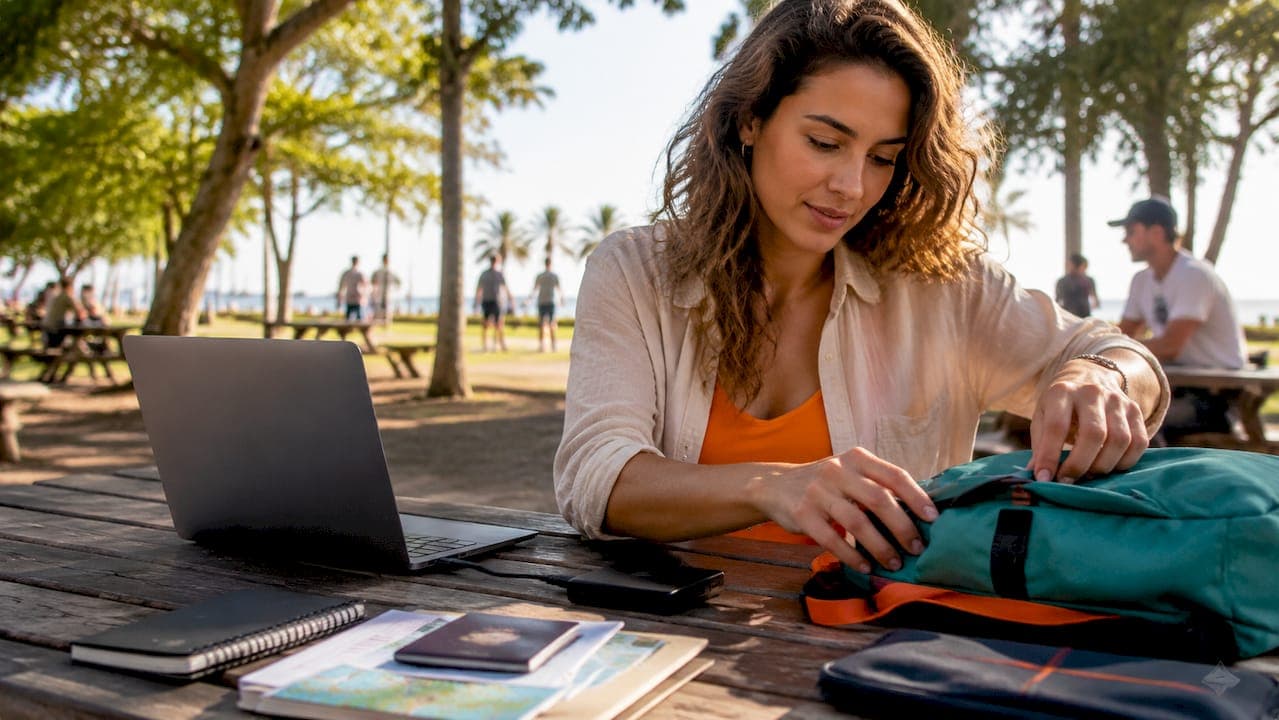
Preparing your laptop for remote work travel means securing your data, tuning your system for performance, and packing the right gear before you ever leave home. The difference between a productive trip and a frustrating one often comes down to decisions you make before boarding. This guide covers the full laptop travel checklist: full-disk encryption with FileVault and BitLocker, phishing-resistant multi-factor authentication (MFA), VPN protocols like WireGuard and OpenVPN, USB-C hubs, encrypted external SSDs, and backup connectivity through local eSIMs. Get these right once, and remote work on the go becomes far less stressful.
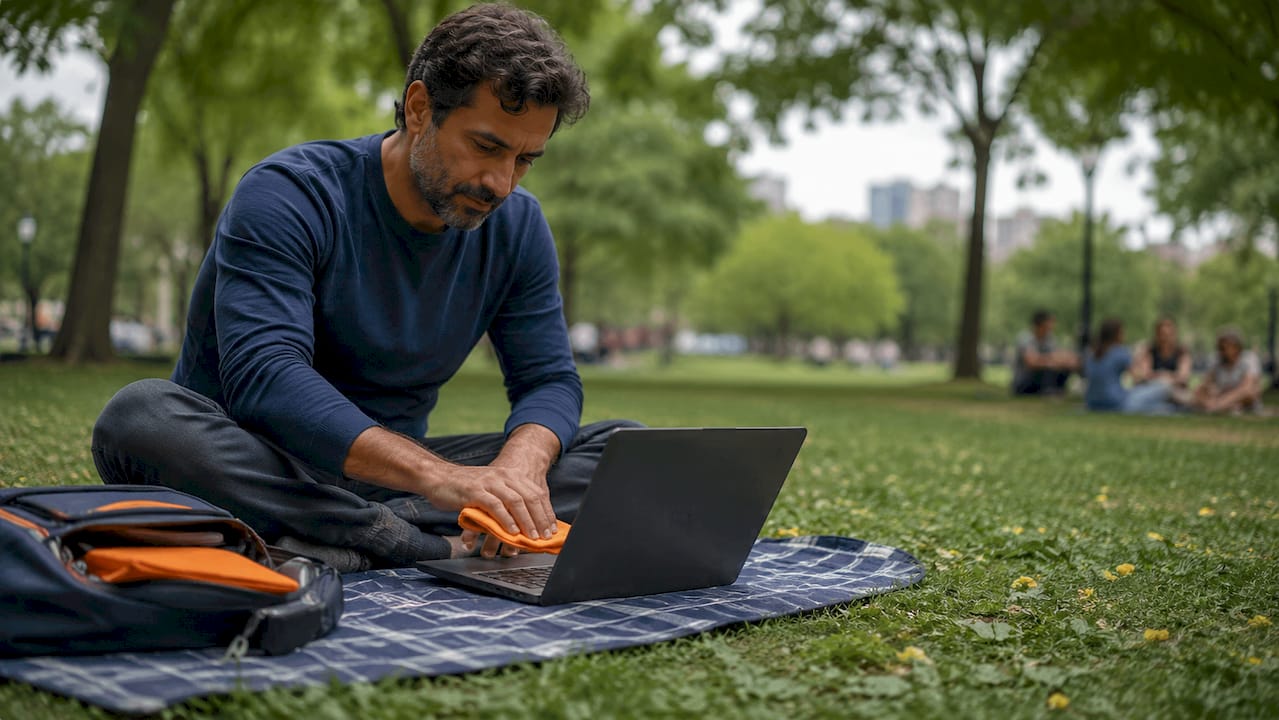
What security measures must you set up before traveling?
Security is the foundation of any solid setup for traveling with a laptop. Public networks in airports, cafes, and hotels are hostile by default. One gap in your defenses can expose client data, credentials, or private files.
Enable full-disk encryption first
Full-disk encryption is your first line of defense if your laptop is stolen or lost. On macOS, enable FileVault in System Settings under Privacy and Security. On Windows, enable BitLocker through the Control Panel or Settings. Both tools encrypt every file on your drive, making the data unreadable without your password.
One important detail: Windows BitLocker in TPM-only mode can be bypassed without a pre-boot PIN. Set a pre-boot PIN in BitLocker's advanced settings to close that gap. This step takes two minutes and significantly raises the bar for anyone who gets physical access to your machine.
Use phishing-resistant MFA
SMS-based two-factor authentication is no longer sufficient for remote workers in 2026. Phishing-resistant MFA methods like FIDO2 passkeys or hardware security keys (such as YubiKey) are now the standard for accessing sensitive systems remotely. These methods cannot be intercepted by fake login pages the way SMS codes can.
Not all MFA methods are equal. 2026 guidance emphasizes phishing-resistant factors for any system that holds sensitive data. If your employer or client uses Okta, Microsoft Entra ID, or Google Workspace, confirm that your account is enrolled in a hardware key or passkey, not just an authenticator app.
Set up your VPN and screen lock
- VPN on every untrusted network: VPN use is mandatory for international remote work. It creates an encrypted tunnel that protects your traffic from anyone monitoring the local network. Use protocols like WireGuard or OpenVPN for the best balance of speed and security. Learn more about why this matters in this VPN guide for nomads.
- Kill switch enabled: Configure your VPN client to block all internet traffic if the VPN connection drops. This prevents accidental data exposure during reconnects.
- Auto-lock in under two minutes: Set your screen to lock automatically after one to two minutes of inactivity. This is non-negotiable in shared spaces like coworking spots or cafes.
- Strong, unique passwords: Use a password manager like 1Password or Bitwarden to generate and store credentials. Never reuse passwords across accounts.
- Encrypted offline backup: Back up sensitive data to an encrypted portable SSD stored separately from your laptop. If your bag is stolen, your backup survives.
Pro Tip: Treat every network as hostile and build layered security so that a single failure does not expose your data. No single tool protects everything on its own.
How can you optimize your laptop's performance for travel?
A well-secured laptop that runs slowly will still cost you productivity. Browser inefficiencies amplify lag over varied networks during remote work travel. Fixing this before you leave takes less than an hour.
Clean up your browser
The browser is one of the biggest performance drains on any laptop. It is also a critical security surface. Limiting browser extensions and resetting profiles regularly reduces both lag and attack risk. Extensions with broad permissions can read your browsing data, inject scripts, and slow page loads.
Audit your Chrome, Firefox, or Safari extensions and remove anything you have not used in the past 30 days. If your browser feels unstable or slow, create a fresh profile rather than troubleshooting the old one. A clean profile loads faster and carries less risk.
Keep your system updated and lean
- Automatic OS updates: Enable automatic updates on macOS or Windows before you travel. Patches close security vulnerabilities that attackers actively exploit on public networks.
- Disable background apps: Turn off apps that launch at startup and run in the background. On macOS, check Login Items in System Settings. On Windows, use Task Manager's Startup tab.
- Limit cloud sync during work hours: Apps like Dropbox, OneDrive, and Google Drive can saturate a slow connection. Schedule syncing for off-hours or pause it during video calls.
- Close unused tabs: Keeping 20 browser tabs open consumes RAM and CPU. Use a tab manager extension like OneTab to suspend inactive tabs without losing them.
Pro Tip: Before any trip, restart your laptop and open only the apps you need for work. Note what loads automatically and disable anything that is not required. This single habit can recover 20–30% of your available RAM.
What gear ensures reliable connectivity and power on the road?
The right hardware turns any location into a functional office. USB-C hubs, power banks, local eSIMs, and phone hotspots are the core tools for connectivity and power when traveling with a laptop. Check the full digital nomad gear checklist for a deeper breakdown of what to pack.
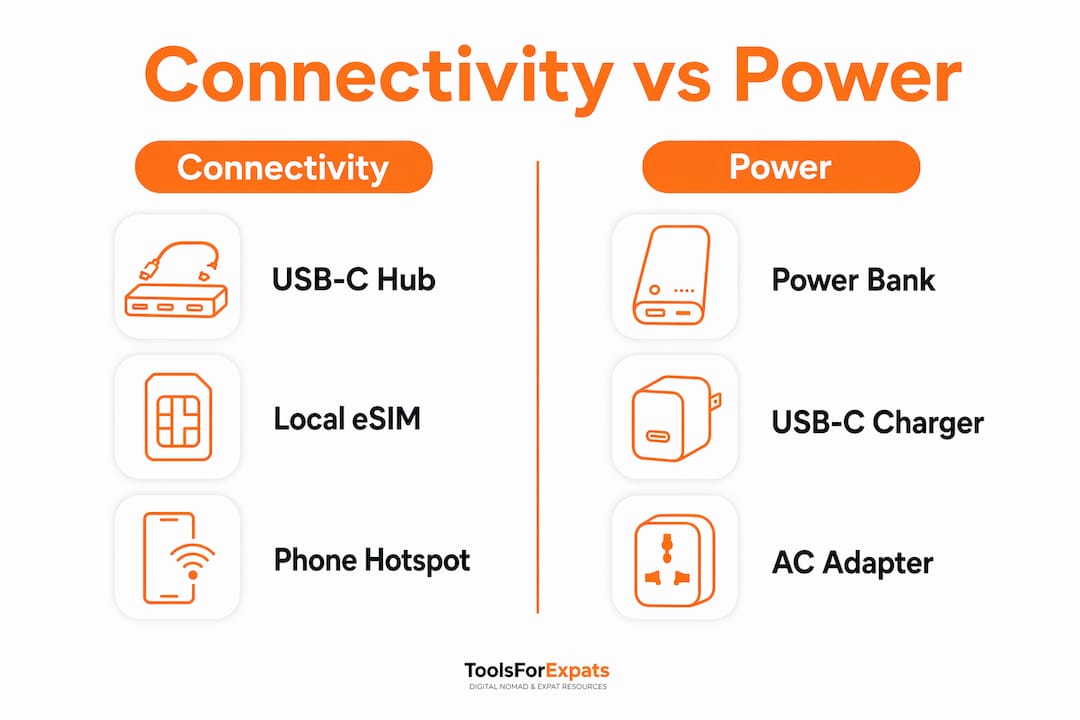
Modern ultrabooks like the Apple MacBook Air M3 and Dell XPS 13 often ship with only one or two USB-C ports. A quality USB-C hub adds HDMI output, SD card slots, USB-A ports, and wired Ethernet in a single compact device. Wired Ethernet is especially valuable in hotels where Wi-Fi is unreliable.
Connectivity and power gear comparison
| Gear | Primary Use | What to Look For |
|---|---|---|
| USB-C Hub | Expand ports (HDMI, Ethernet, USB-A) | At least 60W pass-through charging |
| Power Bank | Extend battery away from outlets | 20,000 mAh minimum with USB-C PD |
| Local eSIM | Backup mobile data abroad | Coverage in your destination country |
| Phone Hotspot | Secondary internet source | Unlimited or high-cap data plan |
| Encrypted External SSD | Offline backup storage | Hardware encryption, rugged casing |
A power bank rated for laptop charging needs to support USB Power Delivery (USB-C PD) at 45W or higher. Standard phone power banks will not charge most laptops at a useful rate. Brands like Anker and Baseus offer travel-sized options that handle both laptops and phones.
For internet backup, a local eSIM from providers like Airalo or Holafly gives you mobile data without swapping physical SIM cards. Pair that with your phone's hotspot capability and you have two independent internet sources. This redundancy matters when a cafe's Wi-Fi fails mid-call.
Which mistakes should remote workers avoid when prepping for travel?
Even experienced remote workers make assumptions that create real problems on the road. Knowing the common failure points before you leave saves you from scrambling in an unfamiliar city.
"Don't rely on encryption if your laptop is unlocked. Full-disk encryption protects a powered-off or locked device. If your screen is on and you walk away, your data is exposed regardless of encryption settings." — Digital Nomad Remote Work Security Guide
Here are the mistakes that catch people off guard:
- Treating VPN as a complete solution: VPN deployment is part of a broader security workflow that includes identity verification and device posture checks. A VPN alone does not protect you from phishing, malware, or weak passwords.
- No offline authentication backup: If you lose internet access and cannot receive an MFA code, you may be locked out of your accounts. Export an offline copy of your password vault (1Password and Bitwarden both support this) and store it on your encrypted SSD before traveling.
- Skipping backup verification: Backing up data is only useful if the backup actually works. Test restoring a file from your encrypted SSD at least once before your trip. Many people discover backup failures only when they need the data most.
- Forgetting the VPN kill switch: A VPN that drops silently sends your traffic over the unprotected network until you notice. Enable the kill switch in your VPN client settings so traffic stops completely if the connection breaks.
- Packing only one power adapter: International travel means different outlet standards. Carry a universal adapter and a backup USB-C cable. Losing your only charging cable in a foreign city is a productivity disaster.
Key takeaways
Preparing your laptop for remote work travel requires layered security, a lean software setup, and the right physical gear working together before you leave home.
| Point | Details |
|---|---|
| Enable full-disk encryption | Use FileVault on macOS or BitLocker with a pre-boot PIN on Windows before any trip. |
| Use phishing-resistant MFA | Replace SMS codes with FIDO2 passkeys or a hardware key like YubiKey for sensitive accounts. |
| Always use a VPN with a kill switch | Connect through WireGuard or OpenVPN on every public network and block traffic on VPN drops. |
| Pack connectivity redundancy | Carry a USB-C hub, a USB-C PD power bank, and a local eSIM for backup internet access. |
| Verify backups before departure | Test restoring from your encrypted external SSD at home, not for the first time in a crisis. |
What i've learned after years of working remotely on the road
The security advice in most articles is technically correct but misses the behavioral layer. You can have BitLocker, a VPN, and a YubiKey and still get burned because you walked away from an unlocked screen in a coworking space. The habits matter as much as the tools.
My personal setup has stayed consistent for years: FileVault on, 1Password for credentials, Mullvad VPN with the kill switch always on, and a Samsung T7 Shield encrypted SSD in a separate bag from my laptop. The SSD separation is the detail most people skip. If someone grabs your bag, they get the laptop and the backup at the same time. Keep them apart.
On performance, the single biggest improvement I made was switching to a clean browser profile for work only. No personal extensions, no saved sessions from random sites, no clutter. It loads faster and I am not tempted to drift off task.
The gear question comes down to one rule: never depend on a single point of failure. One internet source, one power option, one authentication method. Each of those is a single point of failure. Build in one backup for each and you will handle 95% of what travel throws at you without losing a billable hour.
For destination planning, I use the nomad city quiz on ToolsForExpats to shortlist cities before I research them in depth. It saves hours of guesswork.
— Ceyhun
Plan your next remote work trip with ToolsForExpats
Getting your laptop ready is only part of the picture. Knowing where to go, what it will cost, and whether you need a visa matters just as much for a productive trip abroad.
ToolsForExpats offers a full suite of free tools built for digital nomads and remote workers. Use the cost of living comparison tool to compare cities by monthly expenses before you book. Check your visa eligibility across 20+ countries in minutes. Run the numbers with the nomad cost calculator to build a realistic travel budget. No account required, no paywalls. Everything at ToolsForExpats is free and ready to use right now.
FAQ
What is the first step to prepare a laptop for travel?
Enable full-disk encryption first. Use FileVault on macOS or BitLocker with a pre-boot PIN on Windows to protect your data if the device is stolen.
Is a VPN enough to secure my laptop on public wi-fi?
A VPN is necessary but not sufficient. It protects your network traffic, but you also need strong MFA, a locked screen, and updated software to cover the full attack surface.
What MFA method is safest for remote workers in 2026?
FIDO2 passkeys and hardware security keys like YubiKey are the most secure options. They cannot be intercepted by phishing attacks the way SMS codes can.
How should i back up my data before a trip?
Copy your most critical files to an encrypted portable SSD and store it separately from your laptop. Test restoring a file before you leave to confirm the backup works.
What connectivity gear should i always pack?
Carry a USB-C hub, a USB-C Power Delivery power bank rated at 45W or higher, and a local eSIM for backup mobile data. These three items cover the most common connectivity failures on the road.